A QR code business card solves a small but real problem: the person you just met has to type your name, number and email into their phone, and they often don't. A QR code lets them save your details or open your website in a few seconds. But a code only helps if it opens something useful, is big enough to scan, and has been tested before printing. This guide covers when a QR code is worth the space, what it should open, how to size and place it, and how to check it before you order a box of cards.
Is a QR code worth it on your business card?
A QR code earns its place when it does one clear job. It's most useful when:
- You meet many people quickly, for example at conferences, trade shows or networking events, and want them to save your contact on the spot.
- Your work is visual, so a link to your portfolio says more than a job title.
- You want people to take an action, such as booking an appointment, viewing a menu or finding your shop on a map.
- Your contact details are long, like an international phone number or a long email address that's easy to mistype.
It's less useful when the card already has very little space, when the code would just repeat a short website address printed beside it, or when you don't have a page worth sending people to. In those cases, a clean card without a code is better than a crowded one.
What should your QR code business card open?
Before you think about colors or placement, decide what happens when someone scans. There are two main options.
Option 1: a contact card (vCard)
A vCard is a standard format for contact details. When the QR code holds a vCard, scanning it usually makes the phone offer to save a new contact with your details already filled in. No typing, and no chance of a wrong digit.
A vCard works best for:
- Salespeople, consultants and anyone whose goal is "please save my number"
- Networking events where people collect many cards at once
- People without a website or online profile to link to
A vCard stores the details inside the code itself, so more details mean a denser code with smaller dots. Print it larger to scan reliably.
Option 2: a link
A link can open any web address. Common choices:
- Your portfolio or personal website
- Your LinkedIn profile
- A booking page for appointments or calls
- A map location for a shop, clinic or office
- A WhatsApp chat link, if that's how your customers prefer to reach you
Link codes are usually less dense than vCards, especially with a short address, so they scan easily at smaller sizes.
vCard or link: a quick comparison
| Aspect | vCard | Link |
|---|---|---|
| What happens on scan | The phone offers to save your contact | The phone opens a web page or app |
| Best for | Getting your number saved | Showing work or prompting an action |
| Code density | Higher, so print it larger | Lower with a short link |
| Needs a website | No | Yes, or a profile page |
| When details change | Reprint the card | Reprint, unless the page you link to can be updated |
Choose a link that will last
The QR code on a printed card can't change after printing. The address is built into the pattern. So pick a link you expect to keep for as long as you'll hand out the cards.
A practical approach is to link to a page you control, such as yourdomain.com/contact. You can update what's on that page any time without reprinting the cards. Avoid temporary links, links to a single social post, or pages you might delete.
Size, contrast and clear space
Most scanning problems come from three things: a code that's too small, too little contrast, or something crowding its edges.
Size
There's no single official minimum size, because it depends on how much data the code holds and how far away people scan it. On a business card, people hold it close, so a short link can work at a modest size. A vCard with many details, or a code with a logo in the middle, needs more room. When in doubt, go one size bigger and test it.
Contrast
Scanners look for the difference between dark modules and a light background.
- Dark code on a light background is the safest choice.
- Avoid low-contrast pairs such as light gray on white, or gold on cream.
- On a dark card, place the code on a white or light panel instead of printing a light code directly on a dark background. Some scanners struggle with inverted codes.
- Metallic foil inks can reflect light and make scanning harder. If you want foil on your card, print the code in a regular dark ink.
Clear space
Scanners need an empty border around the code, often called the quiet zone. Don't let text, lines, patterns or the card's edge touch it. A white panel behind the code gives it that clear border automatically.
Where to put the QR code on the card
The back of the card is usually the best place. It keeps your name and contact details uncluttered on the front, and the code gets enough room to be scanned easily.
A few placement tips:
- Center it or give it its own column, rather than squeezing it into a corner.
- Add a short line of text that says what the code does: Scan to save my contact, View my portfolio or Book a call. People are more likely to scan when they know what they'll get.
- Keep it away from the trim line. If the printer's cut drifts slightly, a code near the edge can lose part of its border.
- Print the website as text too, where it fits. Some people won't scan, and the text still works for them.
Test the scan before you print
Testing takes ten minutes and can save a whole print run.
- Scan it on screen with at least two different phones, ideally one iPhone and one Android, using the built-in camera app.
- Print one test card at actual size on a home or office printer. Make sure the print setting is 100% or actual size, not fit to page.
- Scan the printed test at a normal distance, in normal room light, not just under a bright lamp.
- Check the result. For a vCard, confirm that every field shows up correctly in the new contact. For a link, confirm that the page opens and loads well on a phone.
- Ask someone else to try it without explaining anything. If they hesitate, add or improve the line of text next to the code.
Then check again whenever you edit the card. Changing a phone number or switching the link changes the code too.
How to add a QR code in DraftPik
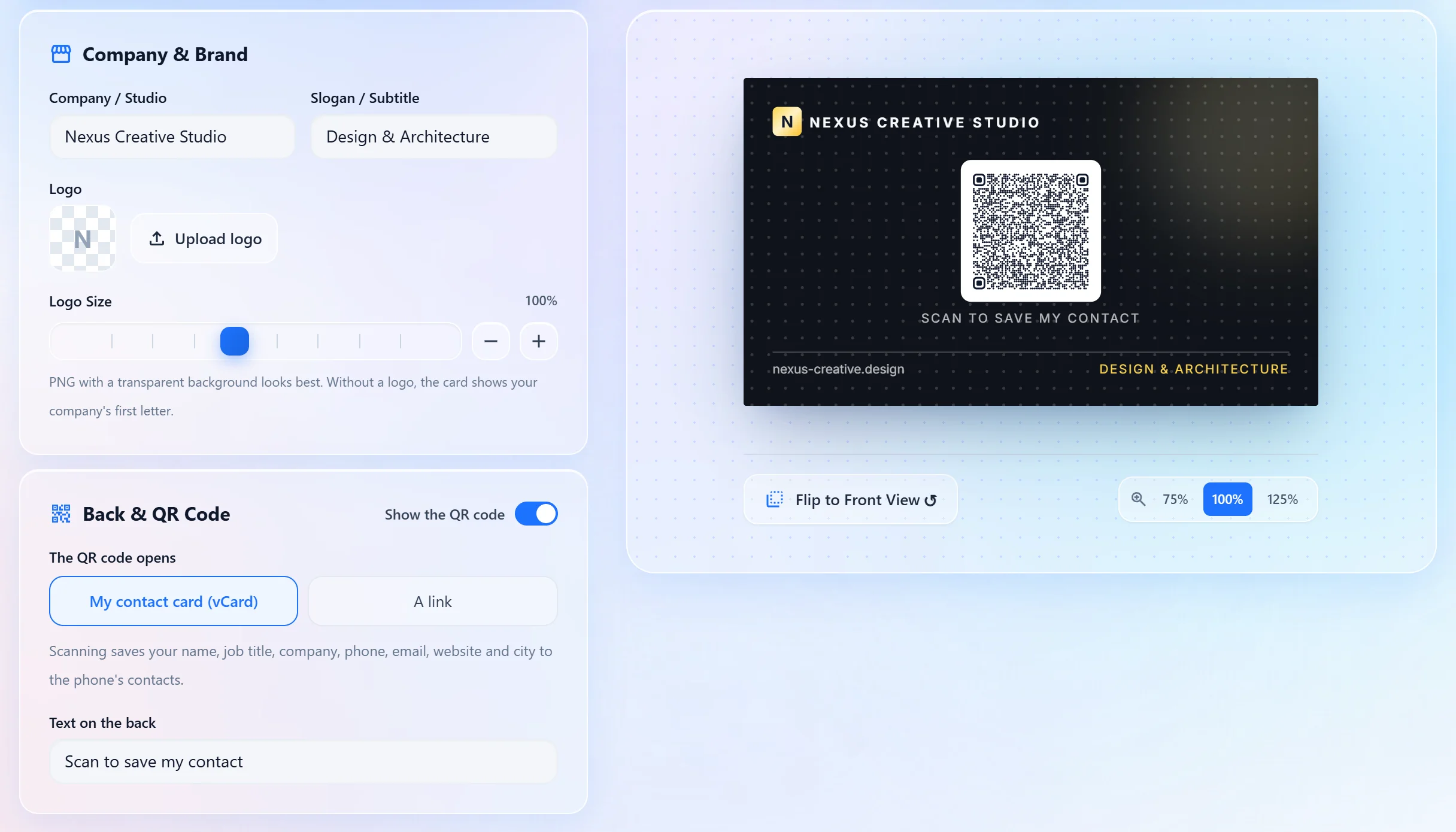
The DraftPik business card generator creates a real, scannable QR code from the details you type. Here's how to set it up:
- Turn on both sides. The QR code goes on the back of the card, so in Customize, open Card Settings and set Printed Sides to Front & back.
- Choose what the code opens. In the Content tab, open Back & QR Code, turn on Show the QR code, and pick My contact card (vCard) or A link. The vCard includes your name, job title, company, phone, email, website and city. For a link, paste the address.
- Add a line of text. Use Text on the back to explain the code, for example Scan to save my contact.
- Pick a back layout. In Customize, open Layout and choose QR in the middle, QR beside the text, or Logo in the middle. The last one puts your logo center stage and adds a smaller code in the corner, so it suits a short link better than a full vCard.
- Style the code. In the QR Code panel, choose Smooth Dots, Classic Matrix or Center Logo, which places your logo or your company's first letter in the middle. Pick a color (black, your text color or your accent color), a size (small, medium or large), and turn on White background behind the code for the easiest scanning, especially on dark cards.
- Check the guides and export. Turn on the trim and safe-margin guides in the preview, then download the print PDF at the exact card size or save PNG files at 600 DPI to test-print before ordering.
DraftPik's QR codes are static. The link or contact details are stored in the code itself. There's no scan tracking, and a printed code can't be redirected later, so choose your link with that in mind.
Common QR code mistakes
- A code that's never been tested. Always scan a printed test, not just the screen preview.
- A link to a page that doesn't work on phones. Almost everyone scans with a phone, so the page must load well on a small screen.
- No explanation. A code with no text beside it gets fewer scans.
- Too small, especially with a vCard or a center logo. Dense codes need more space.
- Low contrast or foil ink. Keep the code dark and the background light.
If you're designing the whole card, our guide to business card design covers sizes, bleed and layout. And to keep your branding consistent online, see these email signature examples.
FAQ
Should my QR code open a vCard or my website?
Choose a vCard if your main goal is to get your number saved. Choose a link if you want people to see your work or take an action, such as booking a call. If you have a contact page that includes your details, a link to it can do both.
Do QR codes on business cards still work if I change my number?
A vCard code keeps the old details, because they're stored in the code. You'll need new cards anyway, since the printed number is wrong too. A link to a page you control lets you update the page, as long as the address stays the same.
Can I put my logo in the QR code?
Yes. A center logo works because QR codes can still be read when a small part is covered, but it makes the code denser. Print it at a larger size and test it on several phones.
Can I see how many people scanned my QR code?
Not with DraftPik. Its QR codes are static and don't track scans. If you link to your own website, your site's analytics may show visits, but that depends on your website, not the card.
Can I make a business card with a QR code for free?
Yes. DraftPik's Free plan includes one business card with the free templates, including the QR code options, and with a free account you can download the print PDF and 600 DPI PNG, up to 10 downloads a day.
Ready to try it? Open the free business card generator, add your details, choose vCard or link for the QR code, and scan the preview with your phone before you export.