If you've applied for jobs online, your CV has probably passed through an applicant tracking system, or ATS, before a person saw it. That sounds intimidating, but an ATS-friendly CV isn't a special trick. It's a CV whose text software can read in the right order, with the words a recruiter is likely to search for. This guide explains what these systems do, what tends to confuse them, and the practical steps that make your CV easier to process, without promising anything no one can promise.
What is an ATS?
An applicant tracking system is software that employers and recruitment agencies use to manage hiring. Instead of collecting CVs in an email inbox, they post jobs, receive applications, store candidate profiles and move people through stages such as "new," "screened," "interview" and "offer."
There are many different systems, from large hiring platforms to simple tools built into a job board or HR package, and each employer configures theirs differently. That's why honest ATS advice is general: you rarely know which system an employer uses or how it's set up.
What an ATS does with your CV
When you upload your CV, a typical system does some or all of the following:
- Stores your file so recruiters can open the original later.
- Parses the text, meaning it tries to pull out your name, contact details, job titles, employers, dates, education and skills into a structured profile.
- Makes you searchable. Recruiters can search candidates by keywords, job titles, locations or skills, and filter the results.
- Records your answers to any screening questions in the application form, such as work permits, notice period or required certificates.
- Tracks your progress through the hiring stages and logs messages.
Parsing is where formatting matters. If the software can't read your text, or reads it in a jumbled order, your profile may end up with missing or mixed-up details, and you may not show up in searches you should match.
Does an ATS automatically reject CVs?
You'll find plenty of dramatic claims online about software throwing out most CVs. Be careful with them. How a system is used depends entirely on the employer. In many setups, people still read the applications and make the decisions, and the software helps them sort and search. Where automatic filtering is used, it can be based on the form's screening questions, such as a required license, rather than on your CV's design.
What you can control is simple: make sure your text is readable, and make sure the words that describe your real experience match the language of the job. That's what the rest of this guide is about.
What makes a CV hard for software to read
These are the most common problems. None of them is a guaranteed failure, but each one adds risk:
- Text inside images. A name, heading or skills list that's part of a picture isn't text. The same goes for scanned CVs and photos of printed pages.
- Important details in the document header or footer. Some parsers may skip those areas, so keep your name and contact details in the main body of the page.
- Tables and text boxes from word processors. They can break the reading order when the text is extracted.
- Creative section headings. "Where I've Been" is harder to recognize than "Experience."
- Icons without words. A phone icon next to a number is fine. An icon on its own, with no visible text, gives software nothing to read.
- Complex layouts. Several columns, sidebars and floating elements can come out in an unexpected order.
- Skills shown only as bars or dots. A five-dot rating means nothing to a parser unless the skill name is written out.
How to make an ATS-friendly CV, step by step
Step 1: Start from the job ad's language
Read two or three ads for the role you want and note the words that keep coming up: job titles, tools, methods, certificates. Then check whether your CV uses the same terms for the same things, where they're honestly true for you.
| The job ad says | Your CV says | Better |
|---|---|---|
| Customer onboarding | Helping new clients | Customer onboarding for new business clients |
| Financial reporting | Monthly numbers | Monthly financial reporting for 3 branches |
| Search engine optimization (SEO) | Website ranking | Search engine optimization (SEO) for 40 product pages |
Step 2: Use standard section headings
Stick to headings that every system and every recruiter recognizes:
- Summary or Profile
- Experience or Professional Experience
- Education
- Skills
- Certificates, Languages, Projects
Step 3: Keep the layout simple
A single-column layout is the safest default when you apply through online portals, because the reading order is predictable. Two-column designs are not automatically a problem, but their reading order depends on how the file was built. If you mainly email your CV to a person, you have more freedom. Our guide to free resume templates compares both layouts in more detail.
Step 4: Write contact details as plain text
Type your email, phone number, city and LinkedIn URL as visible text in the body of the page. Don't rely on icons, images or links with hidden addresses.
Step 5: Format dates and job titles consistently
Use one date format everywhere, for example Mar 2023 – Present, and put the job title, employer and dates in the same order for every role. Consistency helps software and people match each date to the right job.
Step 6: Spell out skills and acronyms
Write skills as words, not just ratings. Use both the full term and the acronym the first time, such as Customer Relationship Management (CRM), so a search for either one can find you. For more on choosing and grouping skills, see our guide to CV skills.
Step 7: Save a text-based PDF, unless asked otherwise
A PDF created from real text keeps your layout the same on every device, and the text inside it can still be read. If the employer or portal asks for a Word file, send Word. Avoid exporting your CV as an image or scanning a printed copy.
Step 8: Test it yourself
You can't see the employer's system, but you can check what any software will find in your file:
- Open your PDF.
- Select all the text and copy it.
- Paste it into a plain text editor.
- Check that your name and contact details are there, each section is in a sensible order, and every job title, date and skill came through.
If something is missing or scrambled, simplify that part of the layout and test again.
Keywords without keyword stuffing
Matching the job's language helps, but there's a line. Compare these two skill lines for a marketing role:
Stuffed: Marketing, digital marketing, marketing strategy, marketing campaigns, social media marketing, marketing analytics
Natural: Digital campaigns (Google Ads, Meta Ads), social media strategy, marketing analytics with GA4, A/B testing
The natural version names real tools and shows what you actually do. Also avoid hiding the job description in white text or tiny fonts. Recruiters read the CV too, and if hidden text shows up in a parsed profile or when someone selects the page, it looks like an attempt to game the process.
Arabic and bilingual CVs
If you write your CV in Arabic, check that the template supports right-to-left text so that bullets, dates and punctuation stay in order. Support for Arabic varies from system to system, and you usually can't see how a given employer's system handles it. A practical rule: send your CV in the language of the job ad, and keep a second version in the other language ready. Our article on whether to write your CV in Arabic or English goes through the trade-offs.
Building an ATS-friendly CV in DraftPik
DraftPik doesn't scan, score or "check" your CV against any system. What it gives you is a layout built with the habits above in mind:
- Real, selectable text in the PDF. The Download PDF button creates a PDF from your CV's text rather than a picture of the page, so the copy-and-paste test above works on it.
- Single-column templates. Executive Serif is a one-column design with standard headings and clickable email, phone and links. Classic is also a clean single column.
- Headings you control. Every section heading can be edited, so you can keep standard names like "Experience" and "Education."
- Skills as written text. Skill and language levels are optional extras. The skill name is always written out.
- A Plain Text export for online forms that ask you to paste your CV.
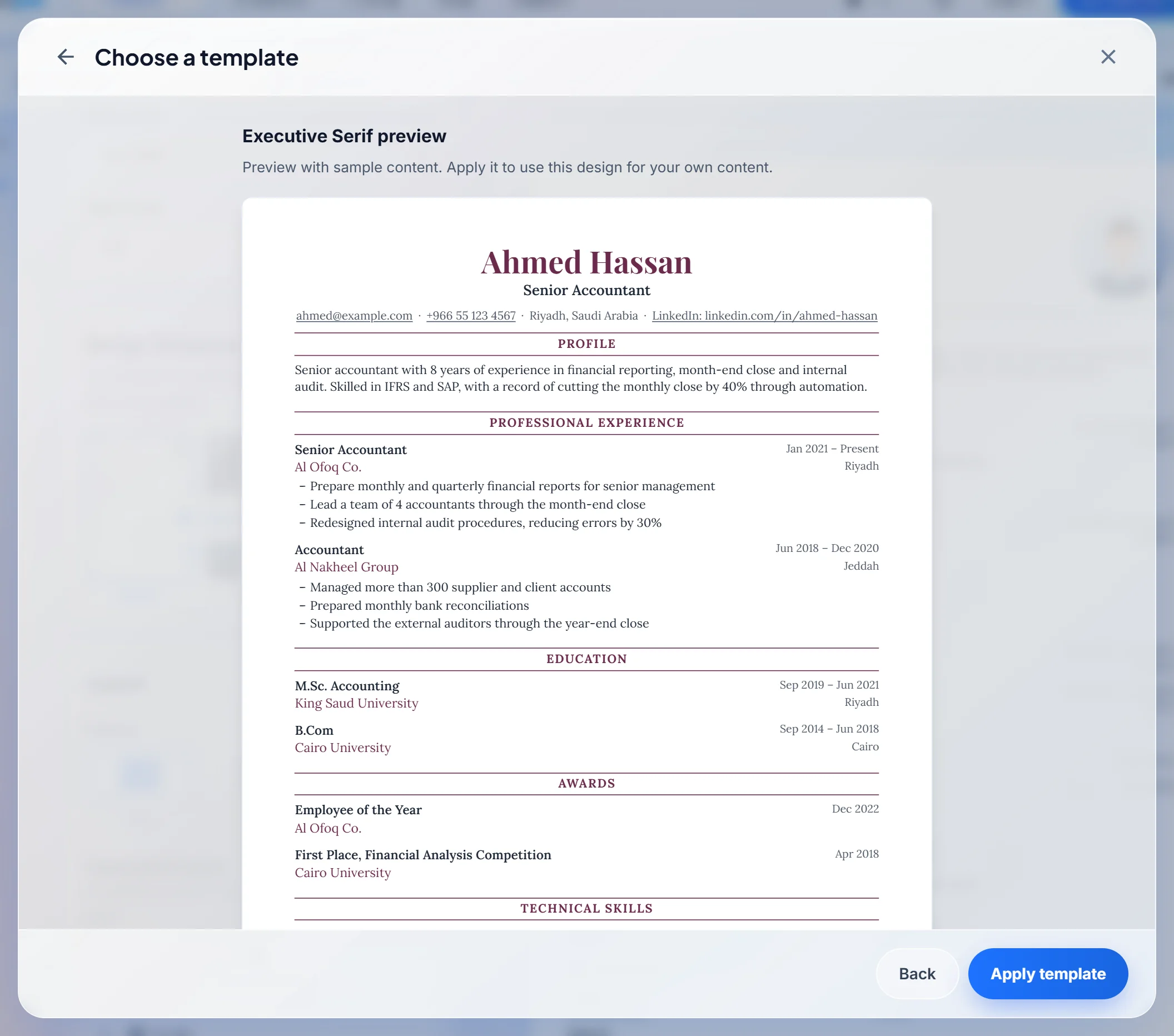
You can also browse every design on the templates page. "ATS-friendly layout" describes design choices, not a guarantee: no template can promise how a particular employer's system will read your CV, so run the self-test on your final file.
FAQ
Is a two-column CV bad for ATS?
Not automatically, but its reading order is less predictable than a single column. If you apply mostly through online portals, a single-column layout is the safer choice. Whichever you use, run the copy-and-paste test on the PDF.
Is a PDF or a Word file better for an ATS?
A text-based PDF works well in many cases and keeps your formatting intact. If the employer or portal asks for Word, send Word. What matters most is that the file contains real text, not images.
Does DraftPik check my CV's ATS score?
No. DraftPik doesn't have an ATS checker or score. It offers templates with an ATS-friendly layout and a PDF with real, selectable text, and you can test the result yourself with the copy-and-paste method.
Ready to put this into practice? Open the DraftPik resume generator, pick a single-column template such as Executive Serif, and download your CV as a PDF with real text. The Free plan includes one CV and clean PDF downloads with a free account, up to 10 a day.